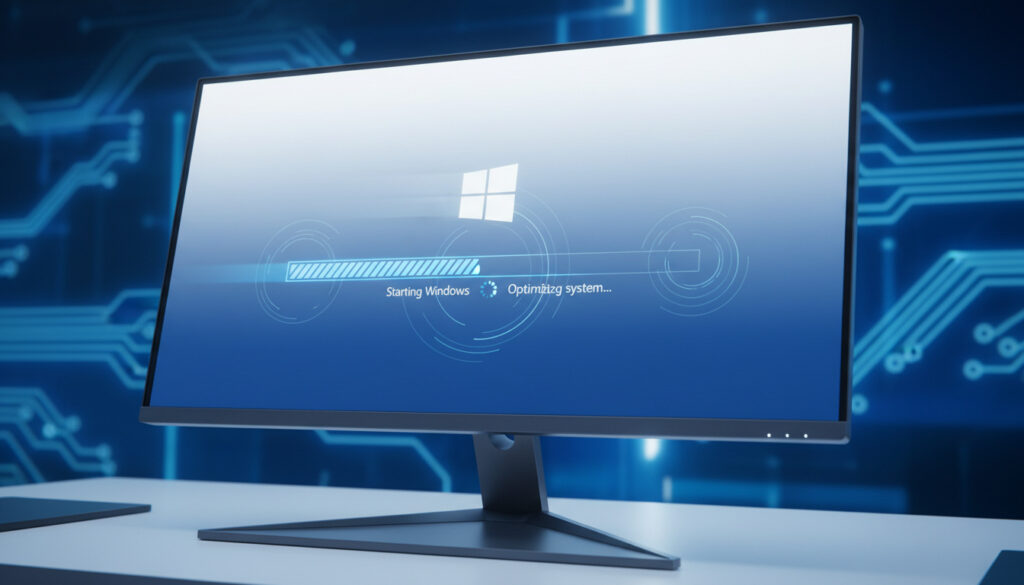
How to Fix Slow Startup Windows – Proven Fixes for Faster Boots
Windows systems that once booted in seconds now crawl through startup sequences stretching into minutes. This degradation affects productivity across millions of devices, transforming routine power-ons into frustrating delays.
The root causes span software bloat, storage constraints, and hardware limitations. Unlike random system glitches, slow startup follows identifiable patterns linked to automatic program launches, accumulated temporary files, and aging mechanical drives.
This guide examines evidence-based solutions drawn from Microsoft documentation and system administration practices. Each method addresses specific bottlenecks without resorting to risky registry modifications or unverified third-party tools.
Why Is Your Windows Startup Slow?
- Startup applications configure themselves to launch automatically without explicit user consent, directly extending boot duration according to system administration analyses.
- Storage volumes with less than 10-20% free capacity force the system to struggle with virtual memory allocation during startup.
- Malware infections including viruses and spyware corrupt system files, substantially increasing boot times.
- Outdated graphics card drivers and hardware drivers cause measurable performance degradation during the initialization phase based on hardware testing.
- Windows system file corruption impedes the boot process, particularly following improper shutdowns or failed updates.
- Mechanical hard disk drives (HDDs) inherently deliver slower read/write speeds compared to solid-state drives (SSDs), creating hardware bottlenecks.
- Specific Windows updates, such as KB5063878, have documented correlations with post-update startup slowdowns.
| Issue | Cause | Fix Time | Impact |
|---|---|---|---|
| Startup bloat | Auto-start applications | 5 minutes | High |
| Storage shortage | <15% free space | 10 minutes | High |
| Malware infection | Viruses, trojans, spyware | 30 minutes | Critical |
| Driver decay | Outdated GPU drivers | 15 minutes | Medium |
| File corruption | System file damage | 20 minutes | High |
| Hardware aging | HDD vs SSD limitations | Variable | High |
| Update conflicts | Problematic KB updates | 10 minutes | Medium |
| Temporary accumulation | Unmanaged temp files | 5 minutes | Medium |
How to Disable Startup Programs in Windows
Task Manager provides the primary interface for controlling startup behavior. Right-click the Start icon and select “Task Manager” to access the interface. Navigate to the Startup apps tab to view impact measurements for each application.
Using Task Manager
Sort applications by their startup impact rating. Disable unnecessary programs while maintaining security software, internet utilities, and graphics drivers in the enabled state. This sorting capability helps identify candidates for removal quickly.
Managing Startup Folders
Access the Run Command using Windows Key + R. Navigate to both “Shell:Startup” and “Shell:Common Startup” locations to manually disable or delete startup shortcuts that bypass the Task Manager registry entries.
Maintain enabled status for antivirus suites, network management tools, and display drivers. Disabling these can cause system instability or security vulnerabilities.
While managing your system configuration, you might also be interested in How to Split Screen on iPad for productivity optimization on other devices.
How to Speed Up Startup with System Maintenance
Disk Cleanup Procedures
Open the Run Command and type cleanmgr to launch the Disk Cleanup utility. Select temporary files and recycle bin contents for removal. For manual cleaning, navigate to %temp%, temp, and prefetch directories using the Run Command to delete accumulated debris.
Driver and Update Management
Verify Windows Update History to confirm the most recent cumulative update is installed following Microsoft guidelines. If specific updates like KB5063878 cause degradation, uninstall them via Settings > System > Recovery. Update device drivers through Device Manager by right-clicking hardware components and selecting automatic or manual driver search.
Advanced Fixes: Run Startup Repair and Clean Boot
System File Integrity
Execute administrative Command Prompt commands to repair corruption. The System File Checker (sfc /scannow) scans for and repairs corrupted system files. Follow this with DISM /Online /Cleanup-Image /RestoreHealth to restore system image health as documented by Microsoft Learn.
Both sfc and DISM commands require administrator privileges. Failure to run as administrator will result in access denied errors.
Clean Boot Configuration
Access System Configuration (msconfig) and enable Diagnostic Startup mode. Disable unused third-party services while ensuring all Microsoft services remain enabled. Restart the system to evaluate boot speed improvements in this minimal environment.
Malware Removal Protocols
Perform full or offline system scans using Windows Security accessible through the taskbar search. Third-party tools like Malwarebytes can remove adware and reset browser settings to default configurations, eliminating boot-time malicious processes.
Before executing system file repairs or clean boot configurations, document current settings or create a system restore point. While these procedures are generally safe, recovery options prevent configuration losses.
For users evaluating hardware upgrades alongside software fixes, reading the Eufy X10 Pro Omni Review demonstrates how modern hardware optimizations improve system responsiveness.
What Is the Step-by-Step Troubleshooting Sequence?
- Assess Startup Impact: Open Task Manager and identify high-impact startup applications. Duration: 1 minute. Source: System Administration Guide
- Disable Unnecessary Apps: Disable non-critical startup entries via Task Manager and startup folders. Duration: 3 minutes.
- Execute Disk Cleanup: Run cleanmgr and clear %temp%, prefetch folders. Duration: 10 minutes.
- Repair System Files: Execute sfc /scannow followed by DISM commands. Duration: 20 minutes. Source: Microsoft Learn
- Update System Components: Install Windows updates and refresh hardware drivers. Duration: 15 minutes.
- Test Clean Boot: Configure msconfig Diagnostic Startup and measure boot improvement. Duration: 5 minutes.
- Verify Disk Health: Schedule chkdsk for next restart to identify sector errors. Duration: Variable.
- Evaluate Hardware: Consider SSD migration if boot times exceed 20 seconds. Source: Hardware Analysis
What Fixes Are Proven vs. Uncertain?
| Established Solutions | Uncertain or Risky Approaches |
|---|---|
| Disabling startup applications reduces boot times by up to 50% in documented cases. | Registry modifications promise speed gains but risk system instability without technical expertise. |
| SSD upgrades consistently reduce boot duration to under 10 seconds. | Third-party optimization software delivers variable results and may introduce bloatware. |
| Disk cleanup and temporary file removal free essential storage resources. | Specific update uninstallation (KB5063878) affects systems differently depending on configuration. |
| Driver updates resolve hardware initialization conflicts per Microsoft documentation. | RAM upgrades show minimal direct impact on boot time, affecting post-startup performance instead. |
| Fast Startup features provide measurable improvements on compatible hardware. | Clean boot configurations are diagnostic tools rather than permanent solutions. |
Why Do Windows Startup Issues Persist?
Modern Windows architectures load dozens of services simultaneously during initialization. Software vendors routinely configure automatic startup privileges during installation, often without clear user notification. This accumulation creates a “startup debt” where each new application adds milliseconds to the boot sequence.
Microsoft’s update mechanisms, while addressing security vulnerabilities, occasionally introduce compatibility issues with existing drivers or system configurations. The tension between security patching and performance stability remains an ongoing engineering challenge.
Hardware longevity further complicates the landscape. Systems shipped with mechanical hard drives five years ago face physical degradation of storage media, while software demands continue increasing making SSD upgrades essential. This divergence explains why aging hardware struggles with newer Windows builds despite meeting minimum specifications.
What Do Microsoft and Experts Recommend?
“Access System Configuration (msconfig) and disable unused services while ensuring all Microsoft services remain enabled. After making changes, restart the system to evaluate boot speed improvements.”
Microsoft Learn Documentation
“Disabled startup applications are among the first things to address, as they directly impact boot time. Many programs configure themselves to launch automatically without user awareness.”
System Administration Video Analysis
Windows Security built-in tools provide comprehensive scanning capabilities to remove malware that corrupts system files and increases boot times.
Microsoft Support Guidelines
How to Maintain Fast Windows Startup?
Consistent maintenance prevents startup degradation. Monitor Task Manager monthly for newly added startup entries, maintain at least 15% free disk space, and verify driver updates quarterly. For systems still experiencing delays exceeding 20 seconds after software optimization, hardware upgrades to solid-state storage offer the most significant improvement. Users seeking additional device optimization techniques may reference How to Split Screen on iPad for cross-platform productivity enhancements.
Frequently Asked Questions
How do I fix slow startup on Windows?
Disable unnecessary startup programs via Task Manager, run Disk Cleanup to remove temporary files, update device drivers, and execute sfc /scannow to repair corrupted system files. For persistent issues, test a clean boot configuration.
How to speed up Windows 11 boot time?
Enable Fast Startup in Power Options, disable high-impact startup applications, migrate to an SSD if using a mechanical hard drive, and uninstall recent updates like KB5063878 if they correlate with slowdowns.
Should I disable startup programs?
Disable non-essential programs such as chat clients or gaming platforms, but maintain security software, network utilities, and graphics drivers. Disabling critical system components may cause instability.
Does updating drivers fix slow startup?
Yes, particularly graphics card and chipset drivers. Outdated drivers cause initialization delays during boot. Update through Device Manager or manufacturer websites, avoiding generic third-party driver tools.
Is slow startup due to HDD vs SSD?
Mechanical hard drives significantly limit boot speed compared to solid-state drives. SSDs provide faster data access, typically reducing boot time to under 10 seconds versus 30+ seconds on aging HDDs.
How to check startup time in Windows?
Access Task Manager’s Startup apps tab to view “Last BIOS time” and application impact measurements. Alternatively, use Event Viewer to analyze boot duration logs under Windows Logs > System.
More related posts
 Bayern v SC Freiburg: Lennart Karl’ Stoppage-Time Winner
 iPhone 15 Pro Max Price: Ireland, UK Deals & Trade-In Value 2026
 Kae Tempest: Biography, Voice Change, Surgery, and Name Change
 Translate Romanian to English – Best Tools and Accuracy Guide
 TV Stand with Storage: Best Picks & Buying Guide
 Dylan Minnette Movies and TV Shows – Complete Filmography Guide
 Get a Load of This Guy: Meaning, Origin, Memes, TikTok
 Hand, Foot and Mouth Disease Symptoms – Timeline, Treatment, Care